← Back to Device & Network Safety
Digital security
How to Secure Your Home Wi-Fi Network
Some links on this site may earn us a commission, at no cost to you. It never decides what we recommend. How we make money.
Your router is the front door to every device in your house. Most people plug it in once and never touch it again, which leaves the default settings in place for years. A few changes make a big difference.
This is one part of our device and network safety guide.
Change the router’s admin password
The admin password protects the router’s settings page, and it’s separate from your Wi-Fi password. Many routers ship with a default one that’s printed on a sticker or easy to look up. Log in and change it to something long and unique, and save it in your password manager.
What good looks like: a changed admin password, stored somewhere you can find it.
Keep the firmware updated
Router firmware gets security fixes like any other software. Turn on automatic updates if your router has them. If it doesn’t, check for updates on a schedule.
Use a long, unique Wi-Fi password
Set the Wi-Fi password to something long that you don’t use anywhere else. You only type it once per device, so length costs you nothing.
Replace a router that no longer gets updates
If your router is old or the manufacturer has stopped releasing updates for it, replace it. No amount of setup fixes a router that won’t get security patches.
Our pick
UniFi Dream Router 7· Ubiquiti
A Wi-Fi 7 router with UniFi’s network software built in, so you can schedule firmware updates and keep guests and smart devices on an isolated network.
Downside: It's more router than most homes need, and it's managed through UniFi's app, which takes more setup than a typical Wi-Fi router. Some of its security features are a paid add-on. Keeping your current router is free if it still gets updates.
What good looks like: automatic firmware updates, guest network support, and a manufacturer that still supports the model.
Put guests and smart devices on their own network
Put guests and smart home devices (cameras, plugs, TVs) on a guest or separate network. If one of those is compromised, it’s cut off from your computers and phones.
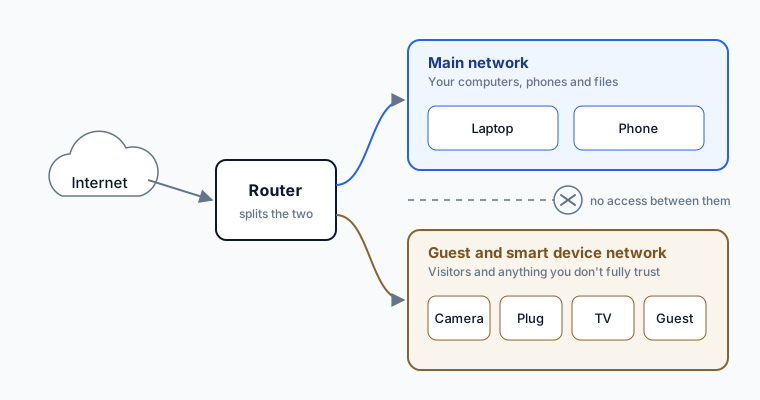
Most routers can do this with a guest network. Move each smart device onto it, and give visitors that network’s password instead of your main one.
What good looks like: a router that supports a guest network or separate networks, with smart devices moved onto it.
Add DNS filtering
DNS is the lookup your device does to turn a site name into an address. A filtering DNS service blocks known malicious sites before your browser reaches them. Cloudflare’s 1.1.1.1 for Families is free. Set 1.1.1.2 and 1.0.0.2 as the DNS servers on your router to block known malware sites, or 1.1.1.3 and 1.0.0.3 to block adult content too. Set it on the router and it covers every device on the network.
What good looks like: a service that blocks known malicious domains and can be set up on your router.
Protect the physical side
A locked down router doesn’t help if someone can unplug it. Our guide to backup power and internet for security cameras covers keeping it powered, hidden and online.
Away from home, use a VPN
All of this protects your network at home. On public Wi-Fi, you’re on someone else’s network, so use a VPN. The main guide covers it.